
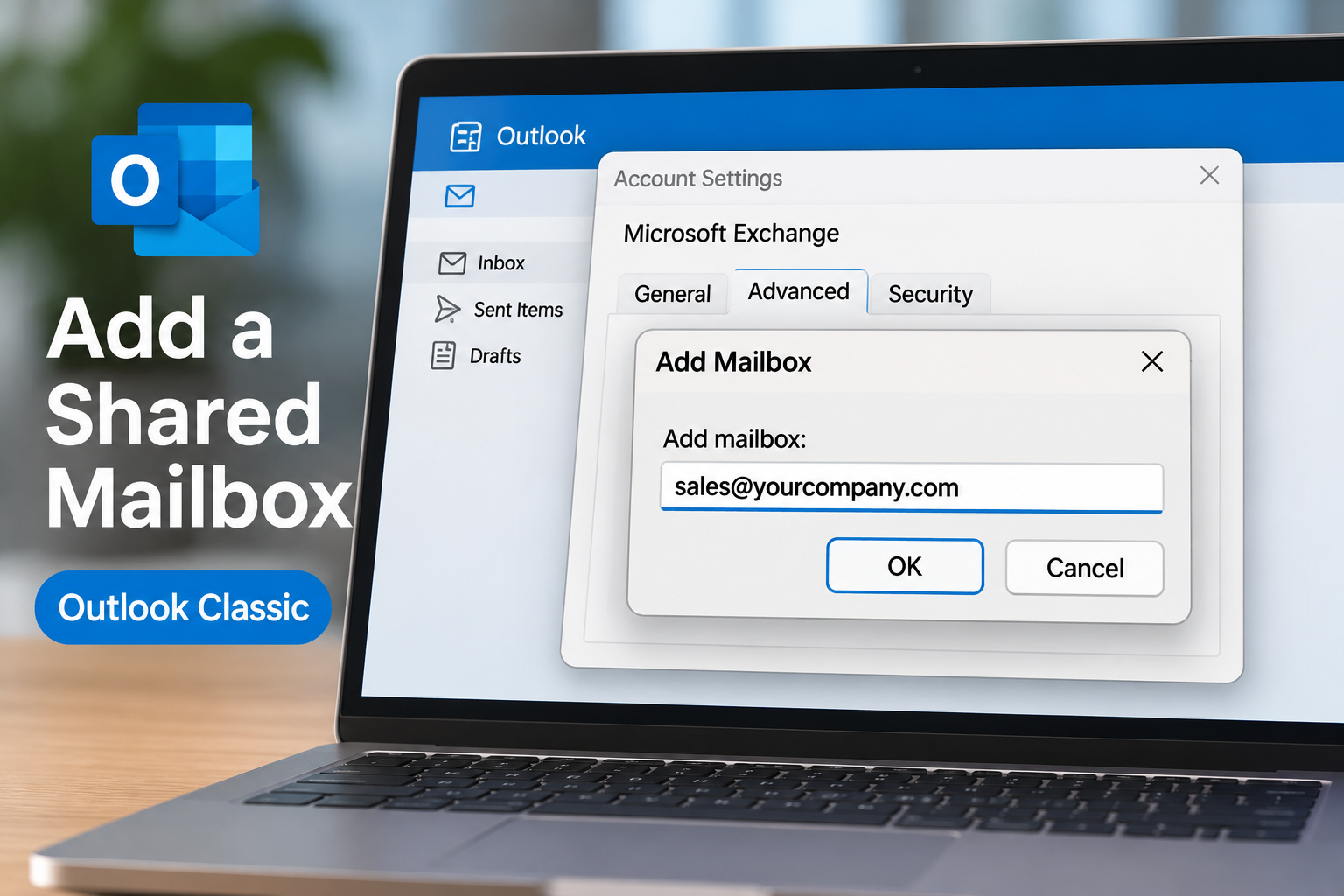
How Do I Manually Add a Shared Mailbox to Outlook Classic?
How Do I Manually Add a Shared Mailbox to Outlook Classic?
Quick Answer
If you have been given access to a shared mailbox, such as [email protected], you can manually add it to Outlook Classic.
Open Outlook Classic and go to:
File → Account Settings → Account Settings → Email → Change → More Settings → Advanced → Add
Enter the shared mailbox email address, click OK, and follow the remaining prompts.
Close and reopen Outlook. The shared mailbox should now appear alongside your normal email folders.
Important: You must already have permission to access the shared mailbox. If you have not been given access, contact your IT administrator.
What Is a Shared Mailbox?
A shared mailbox allows several people to access the same email address.
For example, your company might use:
Instead of having a separate password for each mailbox, authorised employees can access these mailboxes through their own Outlook account.
Shared mailboxes will often appear automatically in Outlook. However, sometimes you may need to add them manually.
Step-by-Step Instructions
Step 1 — Open Outlook Classic
Open Microsoft Outlook on your computer.
Make sure you are using Outlook Classic, rather than the newer version of Outlook.
Step 2 — Open Account Settings
Click File in the top-left corner of Outlook.
Click Account Settings.
From the menu that appears, select Account Settings again.
A new window will open showing your email accounts.
Step 3 — Select Your Email Account
Make sure you are on the Email tab.
Select your normal work email account.
Click Change.
This is the account you normally use to sign in to Outlook.
Step 4 — Open Advanced Settings
Click More Settings.
Select the Advanced tab.
Find the section labelled Open these additional mailboxes.
Click Add.
Step 5 — Enter the Shared Mailbox
Enter the email address of the shared mailbox you want to add.
For example: [email protected]
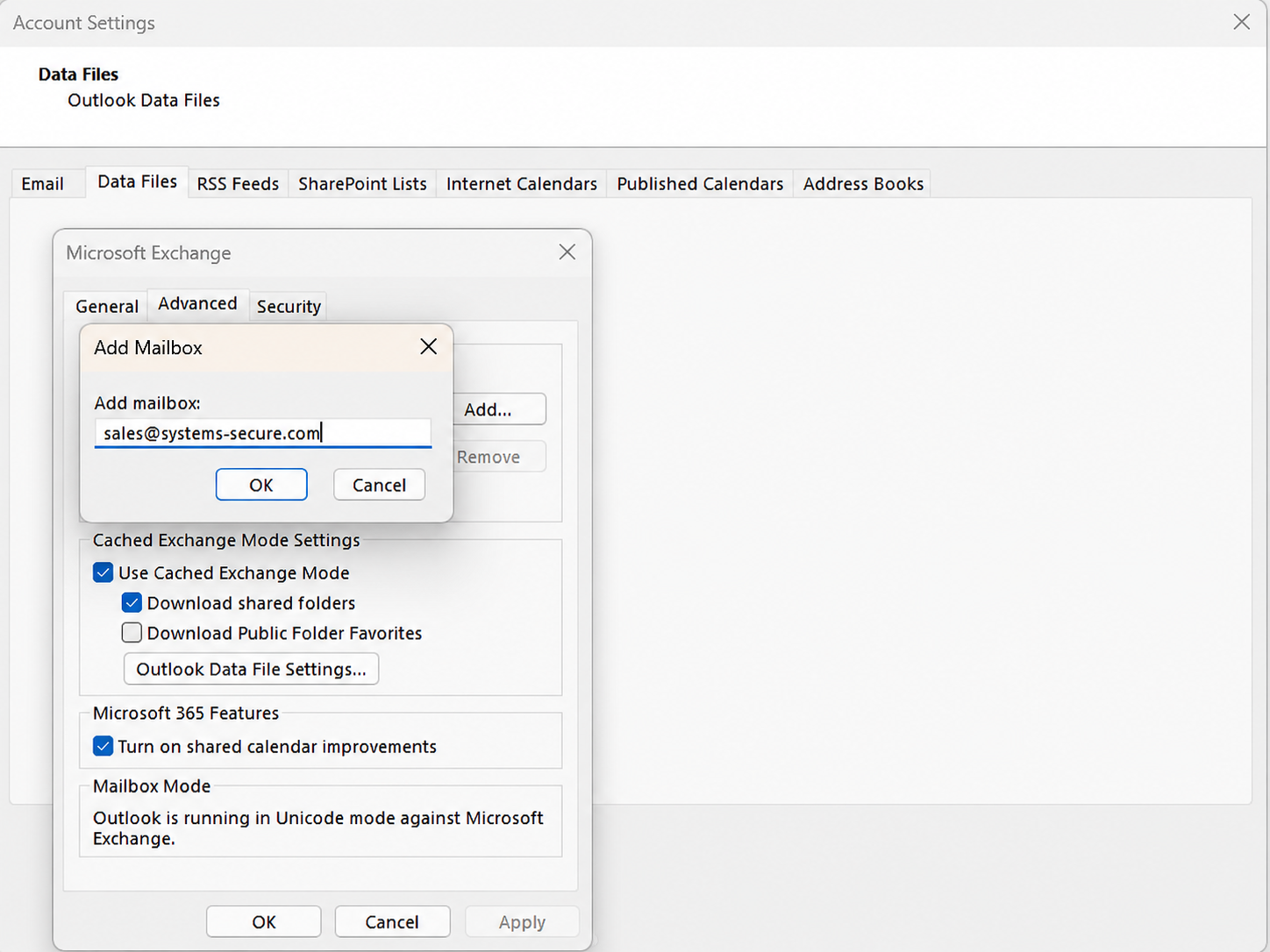
Click OK.
Check that the shared mailbox appears in the list.
Click OK again to close the settings window.
Step 6 — Save Your Changes
Depending on your version of Outlook, click Next, Finish, and then Close to save your changes.
Close Outlook completely and then reopen it.
Step 7 — Check Your Shared Mailbox
Once Outlook has reopened, look at the folder list on the left-hand side.
Your shared mailbox should appear below your existing email account.
Click the arrow beside the shared mailbox to expand it.
You should now be able to see its folders, including:
Inbox
Sent Items
Drafts
Deleted Items
That's it! Your shared mailbox has been added to Outlook Classic.
How Do I Send an Email from the Shared Mailbox?
If you have also been given permission to send emails from the shared mailbox, you can use its email address when composing a message.
Click New Email in Outlook.
Select Options → From if the From field is not already visible.
Click From and select the shared mailbox.
If the address is not listed, choose Other Email Address and enter the shared mailbox address.
Write your email and click Send.
Remember to check the From address before sending, especially when switching between your own mailbox and a shared mailbox.
What If the Shared Mailbox Does Not Appear?
If you have followed the instructions but cannot see the shared mailbox:
Restart Outlook. Close Outlook completely and reopen it.
Check the email address. Make sure you entered the correct shared mailbox address.
Check your permissions. Your IT administrator must give you access before you can open the mailbox.
Allow time for recent changes. If access has only just been granted, it may take a little while to become available.
If the mailbox still does not appear, contact your IT administrator rather than repeatedly adding it.
Important
Adding a shared mailbox does not automatically give you permission to send emails from it.
Your organisation may need to grant you separate permission to send messages using the shared address.
Also, you should not need to know or enter a separate password for the shared mailbox when following these instructions.
If Outlook unexpectedly asks for the shared mailbox password, contact your IT administrator for assistance.